- Understand what the Drivers app does
- Meet the requirements before you begin
- Create a pre check-in for pickup or drop-off
- Cancel a pickup or drop-off
- Add airports and vehicle preferences
- Retrieve reservations by scanning a QR code
With the SprintPass for Drivers app, you can start the check-in process early, keep your place in line, and stay connected with the front counter — so you move through pickup and drop-off faster.
Download the SprintPass for Drivers app from the App Store or Google Play.
To access the app's features, you'll need a SprintPass account. If you don't already have one, you can create your account directly in the app or visit cargosprintpass.com.
Currently, the SprintPass for Drivers app does not support making reservations. However, reservations can be retrieved in the app by scanning the reservation's QR code.
- 1
Select a facility
Sign in, then tap + Select facility for pickup/drop-off. Tap the drop-down menu to select an airport, then choose your cargo facility by searching by prefix or tapping Expand all prefixes.
- 2
Validate your ID (optional)
If you want to speed up future check-ins, validate your ID. To validate digitally, upload your ID and take a selfie to confirm your identity. Future validations require only a selfie.
- 3
Choose shipment type and priority
Select the shipment type and priority for your visit.
ℹ️NoteOptions available may vary by facility.
- 4
Select vehicle and fuel type
Choose the vehicle and fuel type for your trip.
ℹ️NoteThis feature is applicable only at certain facilities.
- 5
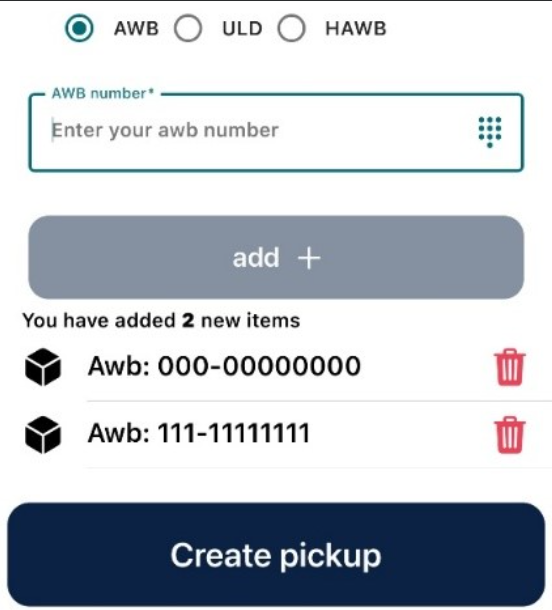
Add AWB or ULD and create the pickup
Include the AWB or ULD, then tap the Create pickup button. Available options and selections may vary by facility. A pop-up will appear — confirm by selecting Yes.
 🔍 Click to zoom
Adding AWB items and creating the pickup - 6
Review your request
Once you have successfully completed your request, you will return to the homepage. Here you will see your request's details as well as historical information.
- 7
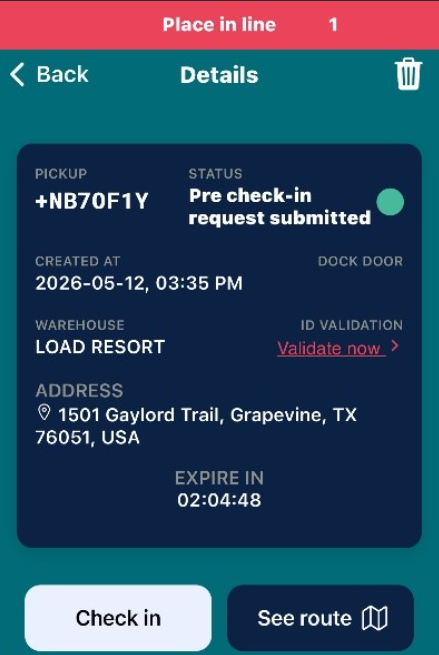
See your place in line
Select Details in the corresponding pickup/drop-off to see your place in line at the top of your phone. You can also see the route in this section.
 🔍 Click to zoom
Pickup details screen showing your place in line and route - 8
Check in near the facility
Check in when you are near the facility.
ℹ️NoteGeofencing distance settings and availability may vary by location.
- 1
Open the pickup/drop-off
To cancel an existing pickup or drop-off, tap the Details button.
- 2
Tap the trash icon
Tap the trash icon in the top right corner of the screen.
- 3
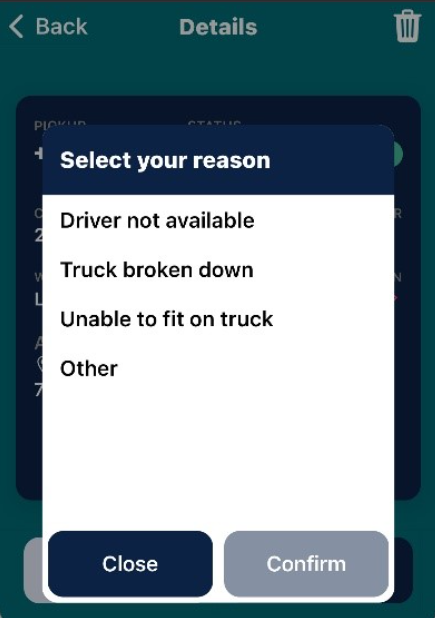
Select a cancellation reason
Choose the cancellation reason. If you select Other, enter the reason and then tap Confirm.
 🔍 Click to zoom
Selecting a cancellation reason
When creating a new pickup/drop-off, the airports you selected when creating your account are automatically displayed. To add more, you must update your preferences.
- 1
Go to Settings
Tap the three-lines icon in the top left corner, then select Settings.
- 2
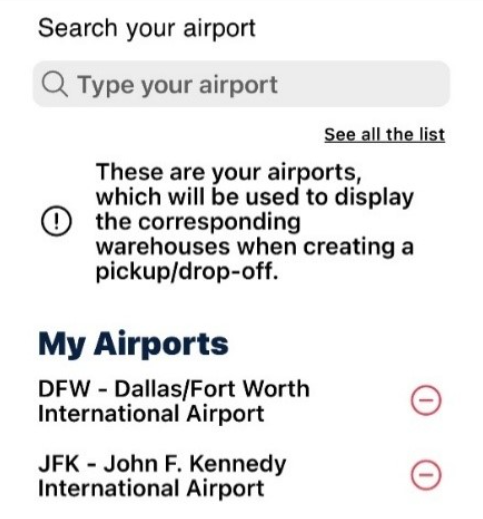
Add your most-visited airports
Select Airport preference, then search for your airport or view the whole list. Tap the + button so the airport appears in the pickup/drop-off drop-down.
 🔍 Click to zoom
Airport preferences with the My Airports list - 3
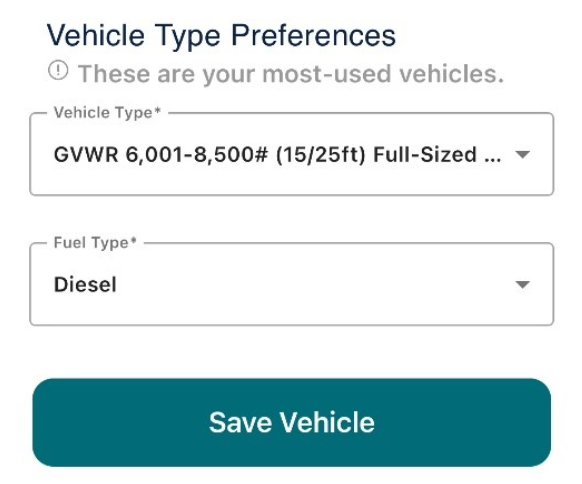
Save your most-used vehicles
In the preference section, select the vehicle type, then the fuel type, and tap Save.
 🔍 Click to zoom
Vehicle Type Preferences with vehicle and fuel type
- 1
Get the Picklist document
If a freight forwarder or dispatcher made a SprintPass reservation for you, ask them to provide the Picklist document.
- 2
Go to the Scanner
Tap the three-lines icon in the top left corner, then select Scanner.
- 3
Scan the QR code
Scan the QR code provided on the Picklist document.
- 4
Add the reservation to your list
The pickup/drop-off will appear on your screen. Review it, then tap the + Add to List button. Your reservation will now appear on your pickup/drop-off list.
For questions or issues, contact CargoSprint at cargosprint.com/contact-us or email support@cargosprint.com.