In this guide:
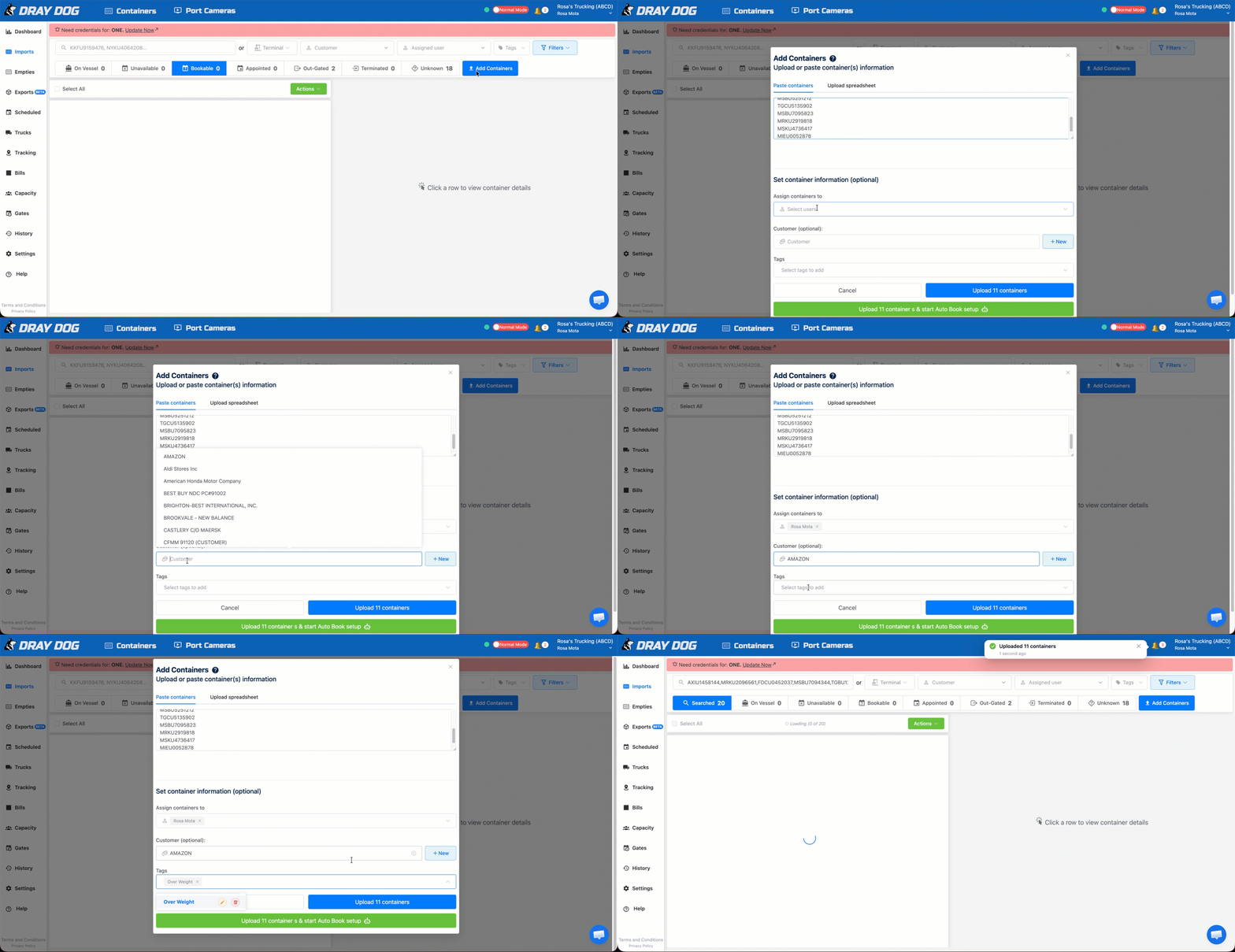
- Add containers by copying and pasting a list
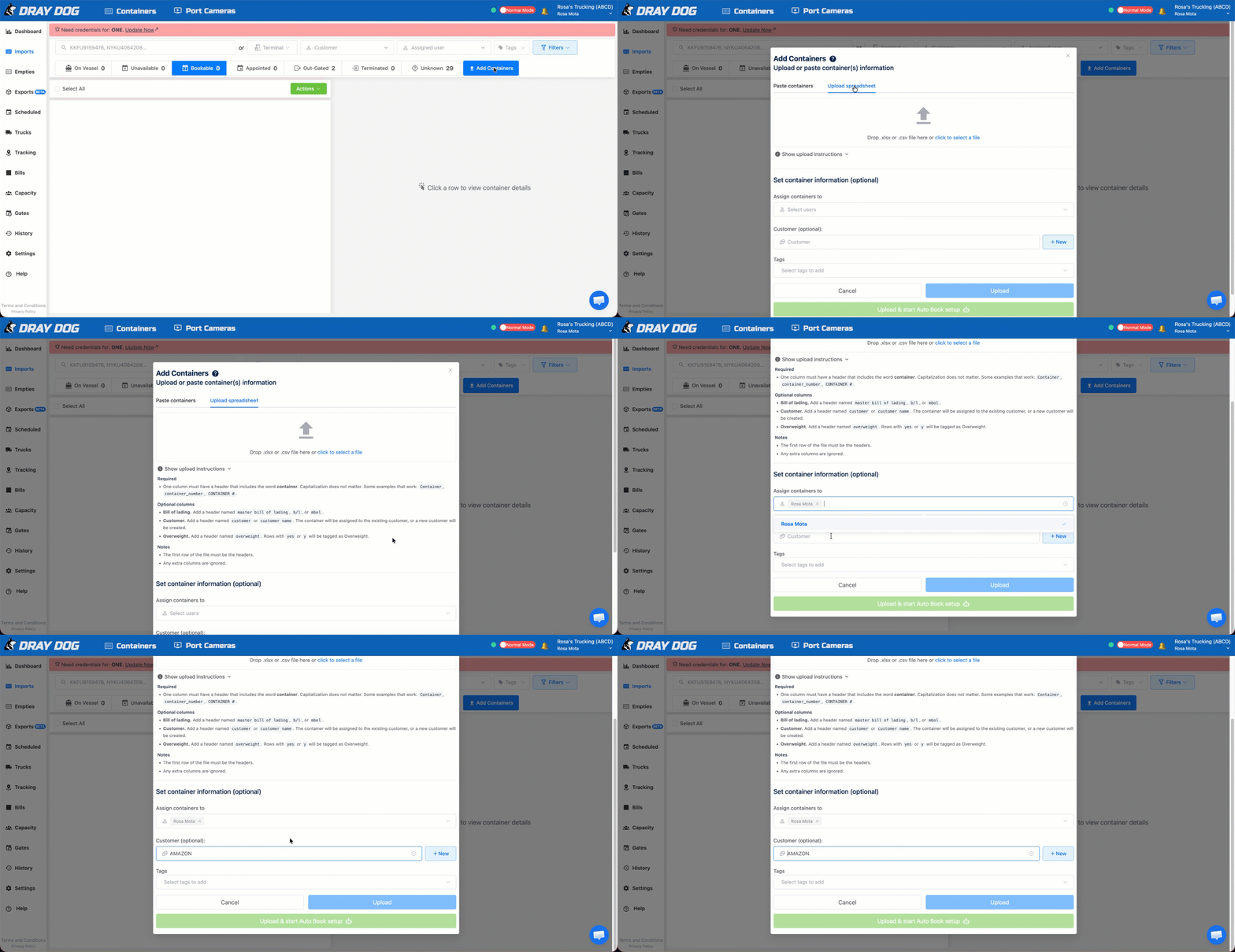
- Add containers by uploading an Excel file
There are two simple ways to add containers in Dray Dog. Choose whichever method works best for you.
- 1
Open the Add Containers dialog
Click the Add Containers button.
- 2
Paste your containers
Paste your list of container numbers into the field.
- 3
Assign a user
Assign the containers to a user.
- 4
Set a customer (optional)
Optionally, set a customer for the containers.
- 5
Add a tag (optional)
Optionally, add a tag to help organize the containers.
- 6
Upload
Click the Upload button to add the containers.
 🔍 Click to zoom
Adding containers by pasting a list
- 1
Open the Add Containers dialog
Click the Add Containers button.
- 2
Select Upload spreadsheet
Choose the Upload spreadsheet option.
- 3
Assign a user
Assign the containers to a user.
- 4
Set a customer (optional)
Optionally, set a customer for the containers.
- 5
Add a tag (optional)
Optionally, add a tag to help organize the containers.
- 6
Upload
Click the Upload button to add the containers.
 🔍 Click to zoom
Adding containers by uploading an Excel file