In this guide:
- Access the Users settings
- Invite team members by email
- Understand the new user onboarding flow
- Review user permission rules
Add team members to your Dray Dog organization so they can help manage containers and appointments. Follow these steps to send invitations.
- 1
Access User settings
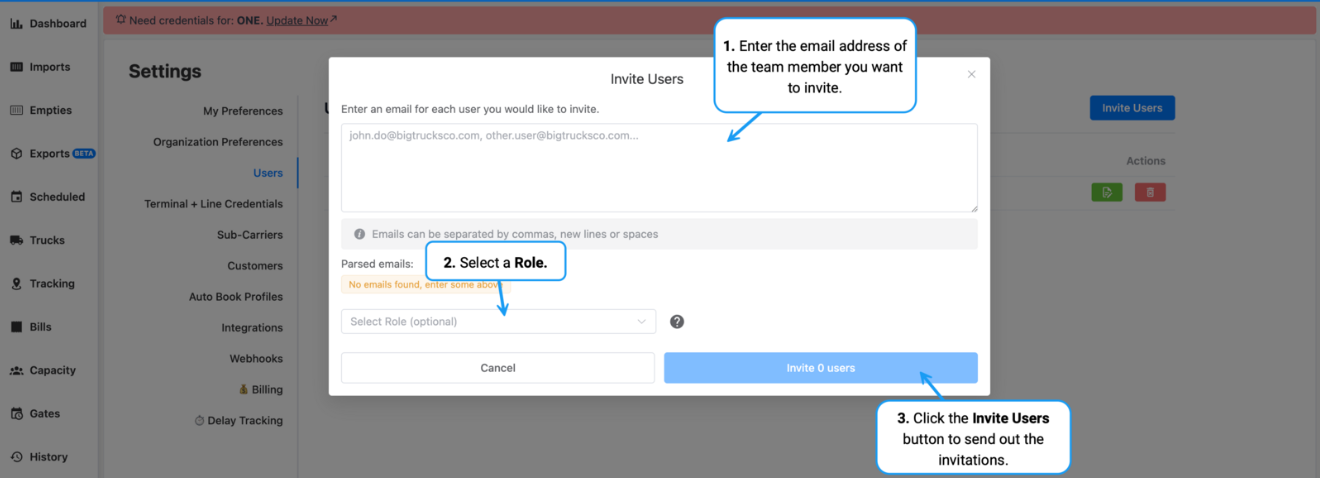
Go to the Settings page in Dray Dog, select the Users tab, and click the Invite Users button.
- 2
Enter email addresses
Enter the email address of the team member you want to invite. You can enter a single email or multiple emails at once. Then click the Invite Users button to send out the invitations.
 🔍 Click to zoom
Invitation dialog with email address entry
Once you send an invitation, the invited team member goes through a short setup process:
- 1
Receive the welcome email
The invited team member receives an email from notifications@draydog.com.
- 2
Activate the account
The user clicks the link inside the email to begin account setup.
- 3
Set up credentials
They create their username, set a password, and accept the invitation to join your organization.
ℹ️Note
- Management permissions: Only management users can invite or edit other management users.
- Regular user limits: Regular users can invite new members to the platform, but they cannot assign management roles to them.