- Add an empty to your load appointment
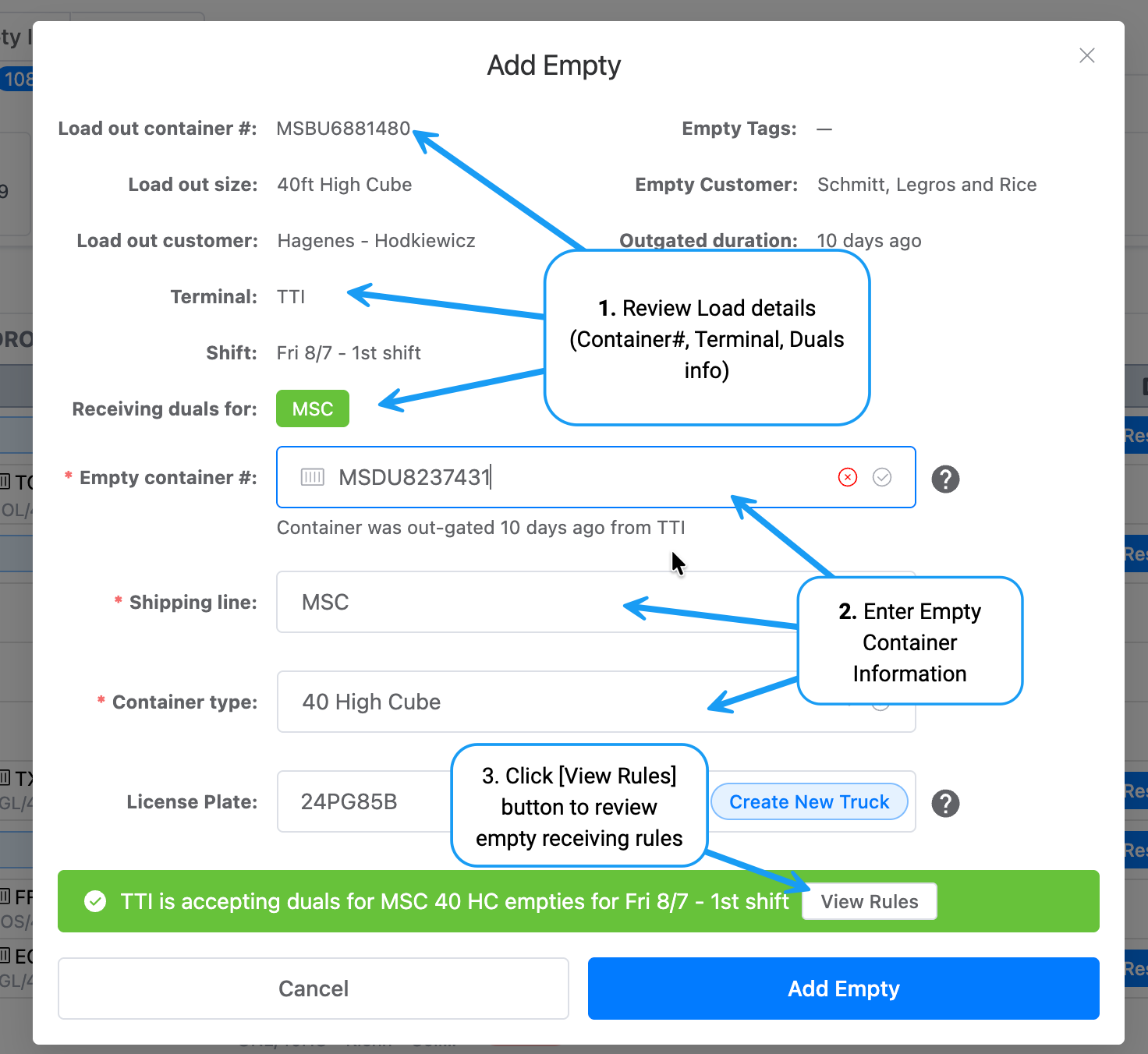
- Review the load details
- Enter the empty container number
- Check the status banner and complete the appointment
A dual appointment combines picking up a loaded container with dropping off an empty container in a single transaction.
This feature does not check if a container is off-hired, nor does it on-hire containers. Continue your standard manual process for those steps.
You can add an empty to your load to create a dual appointment from the Imports page or from the Scheduled page. Both open the same dialog.
| From | Steps |
|---|---|
| Imports | Go to Imports → Appointed tab → find the load appointment → click Add Empty |
| Scheduled | Go to Scheduled → find the load appointment → click Add Empty |
Confirm the pop-up shows the correct information:
- Terminal — where the appointment is scheduled
- Shift — the booked time slot
- Container Type & Shipping Line — receiving details
Provide the empty container number in one of two ways:
- Type it into the container field
- Select from the dropdown (containers out-gated as loads, listed oldest to newest)
 🔍 Click to zoom
The banner tells you whether the terminal is accepting your empty:
| Banner | Status | What to do |
|---|---|---|
| 🟢 Green | Accepting empties | Proceed |
| 🟡 Yellow | Uncertain | Double-check terminal rules |
| 🔴 Red | Not accepting | Try another container or wait |
Click View Rules to see a screenshot of the terminal's current empty return rules.
- 1
Verify the details
Confirm all appointment details are correct.
- 2
Finalize the dual
Click Add Empty to finalize. Your dual appointment is ready for processing.