In this guide:
- Understand the empty container rules and status grid
- Book a single empty appointment
- Book a dual appointment
- Verify your booked appointments
The Empties Page shows you which terminals are accepting your empty containers and lets you book single and dual appointments. This guide walks you through reading the rules and completing a booking.
- 1
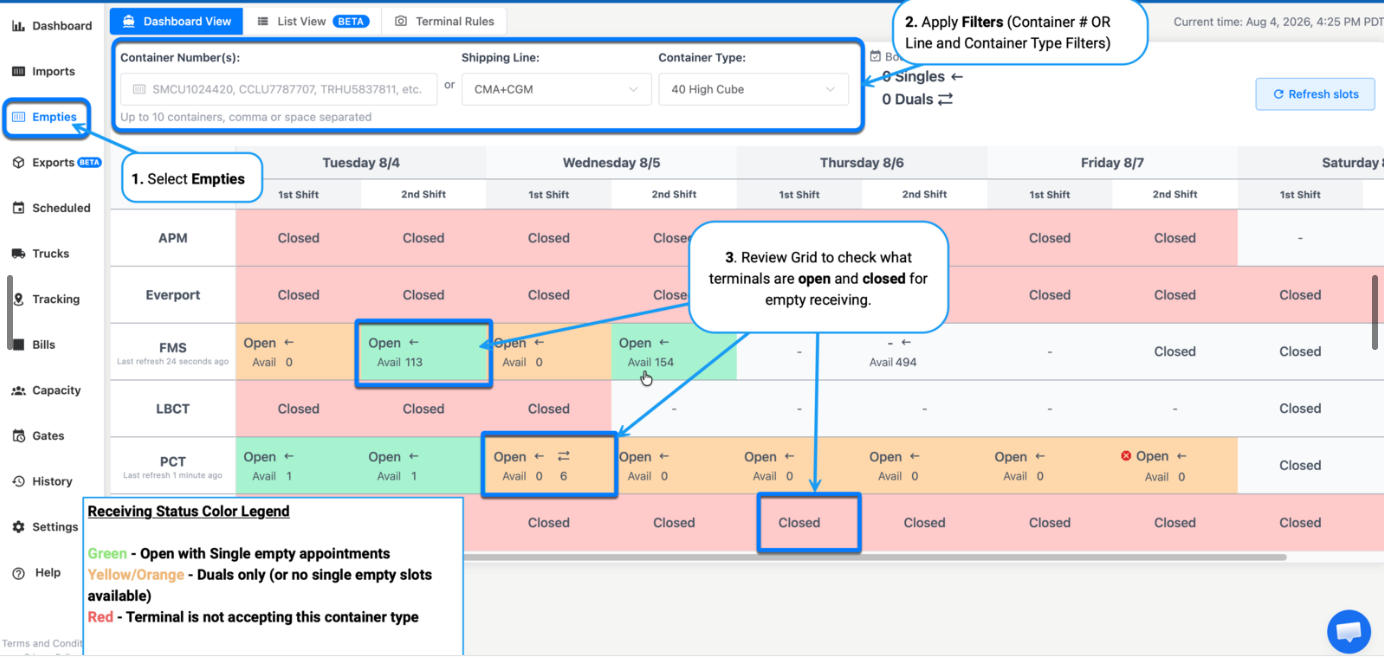
Open the Line + Type view
Go to the Empties Page and select the Line + Type view.
- 2
Enter your container details
Enter your Container Number, or select your Shipping Line and Container Type from the dropdowns.
- 3
Review the terminal status grid
Read the grid by color and arrows:
- 🟢 Green: Single empty appointments available.
- 🟡 Yellow: Duals only (or no single empty slots available).
- 🔴 Red: Terminal is not accepting this container type.
- ➡️ Single Arrow: Number of single empty appointments available.
- 🔁 Double Arrows: Total dual opportunities.
 🔍 Click to zoom
Terminal status grid on the Empties Page
- 1
Select a green cell
Click a green cell with a single arrow for your desired terminal and shift.
- 2
Choose a time slot
Select your preferred time slot.
- 3
Confirm the booking
Click Book, then click Book again to confirm.
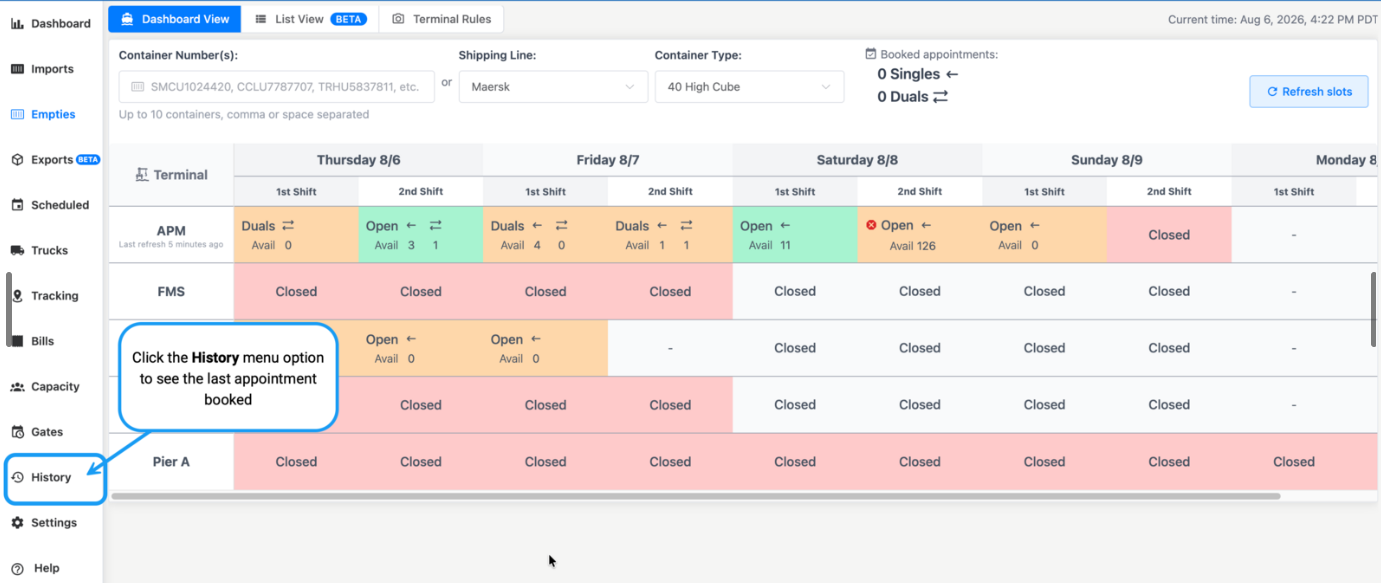
Go to the History tab in the main menu to view your latest booked appointments. You can filter by items booked by you.
 🔍 Click to zoom